How to Send Offer Letters via Greenhouse
Learn the step-by-step process for generating an hourly offer letter within Greenhouse and sending it to a candidate using Adobe Acrobat Sign. This guide ensures you can efficiently manage the document preparation, attachment, and signature request workflow.
Offer Letter Generation
1. Navigate to the candidate profile page.
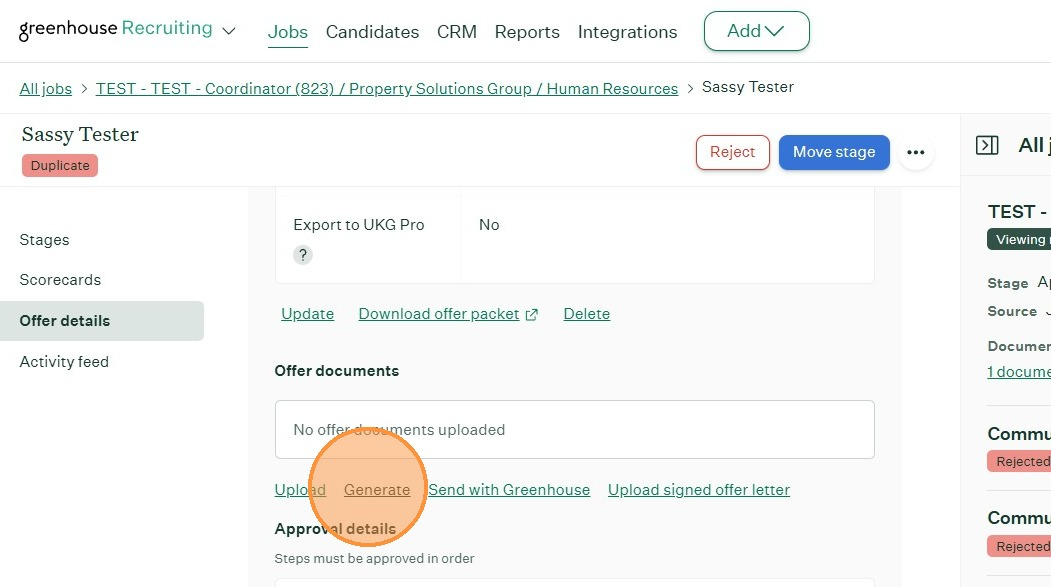
On the candidate profile page - click "Generate" to generate the appropriate offer letter template.
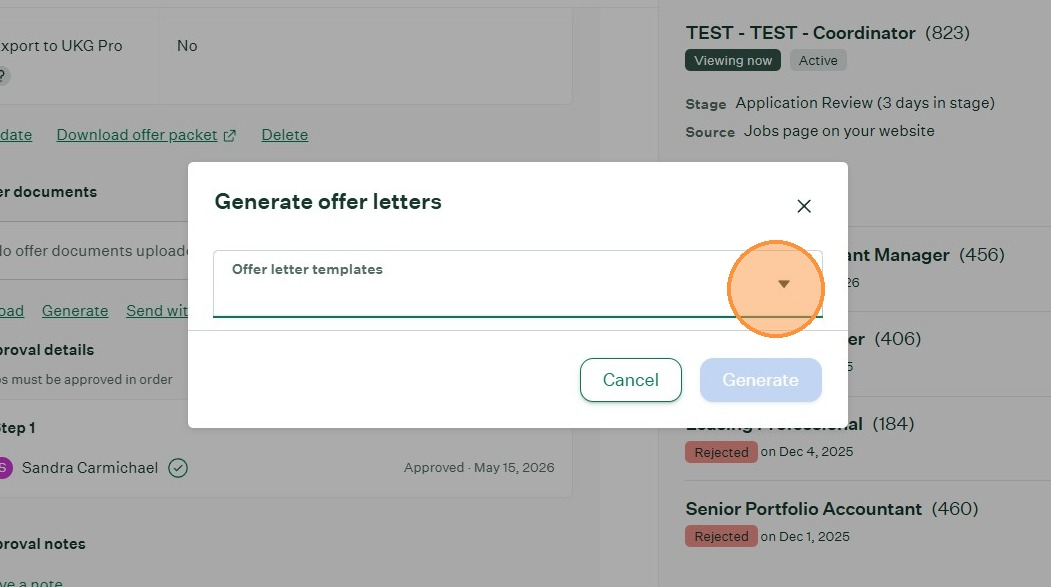
2. Click the dropdown to choose the appropriate template to generate the offer.
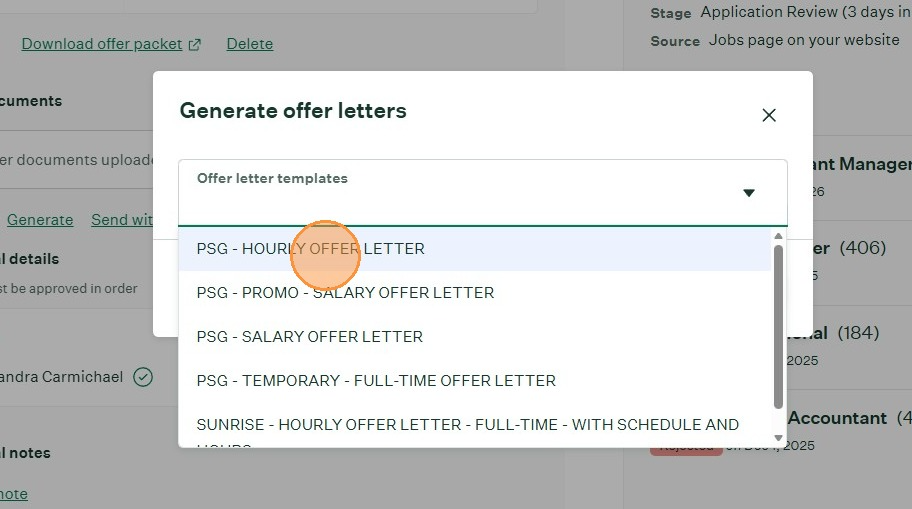
3. Click - the offer template needed.
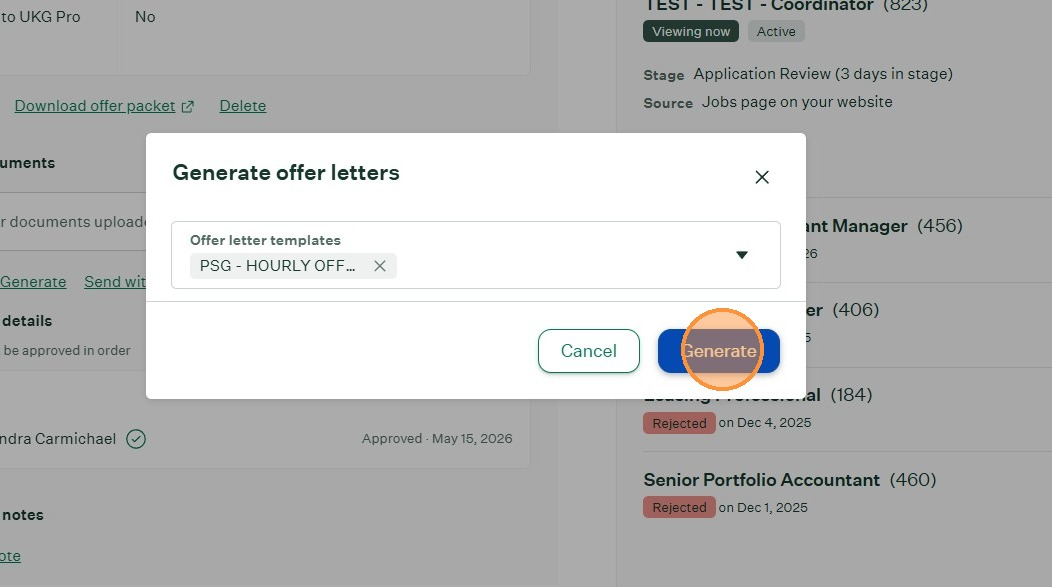
4. Click Generate button
This will generate the offer based on the criteria loaded in the Create Offer section by the hiring manager and fill in the place holders embedded in the offer template.
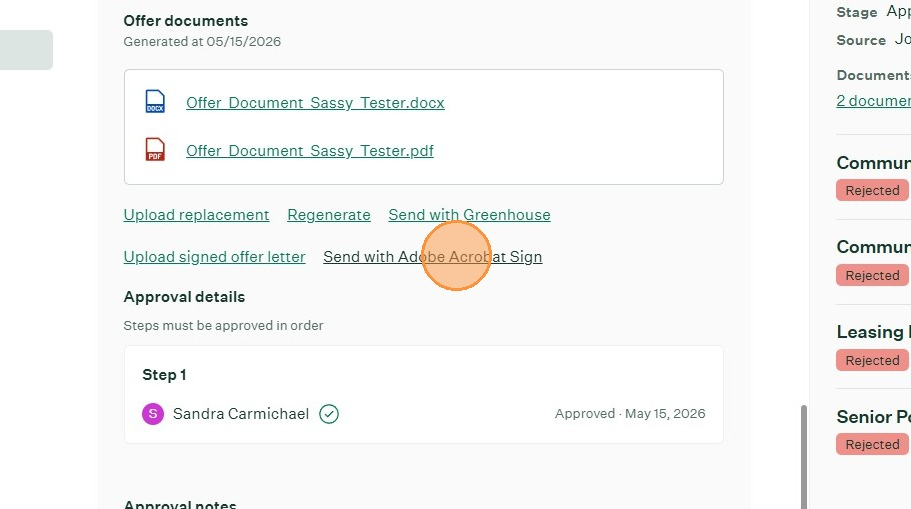
5. Click "Send with Adobe Acrobat Sign"
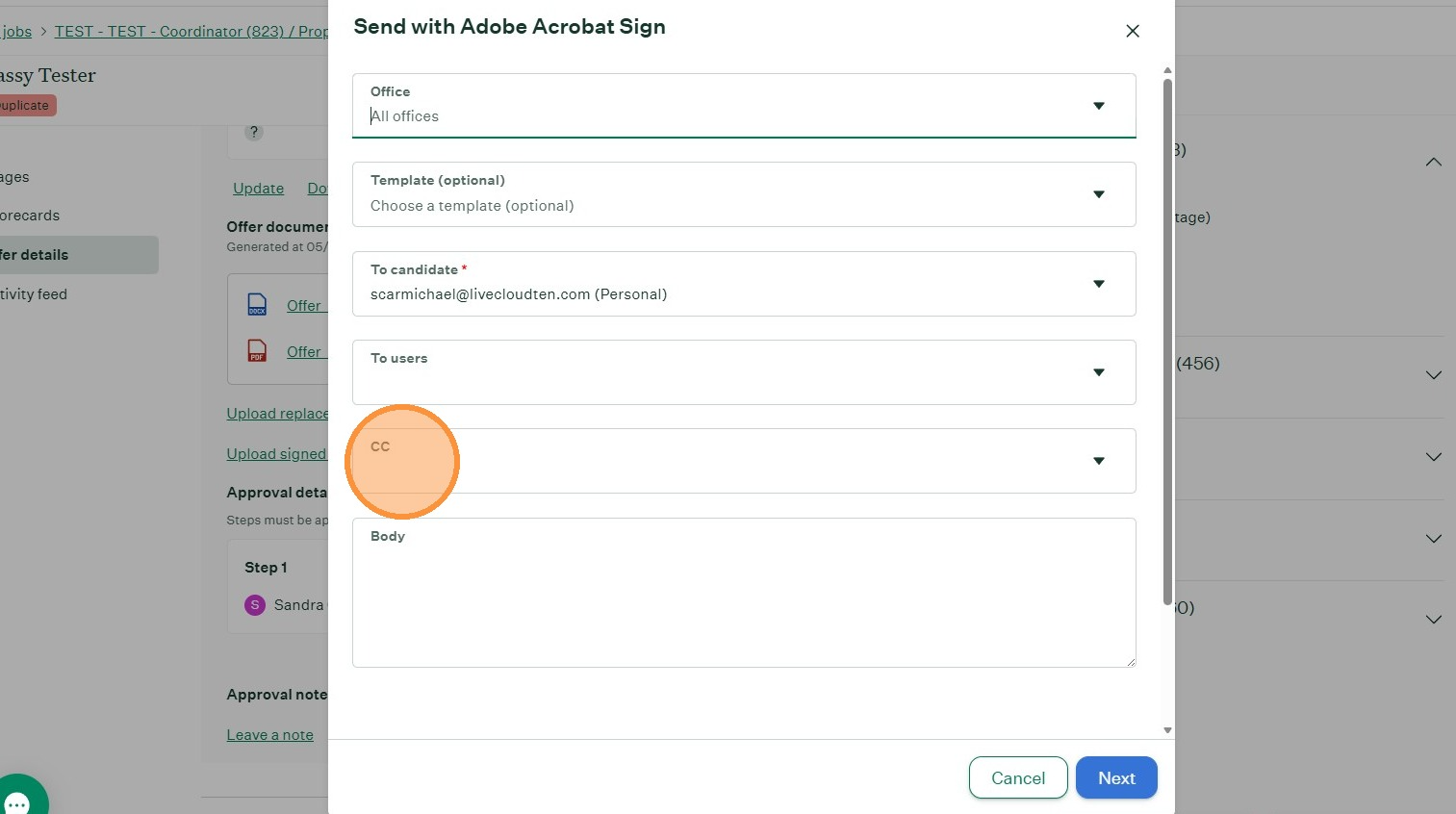
6. The candidate's email will auto populated from their email listed in their applicant profile to the "To candidate" box.
Click on the CC field to send a copy of the email to the hiring manager and/or RREM. You can as many CCs as you want.
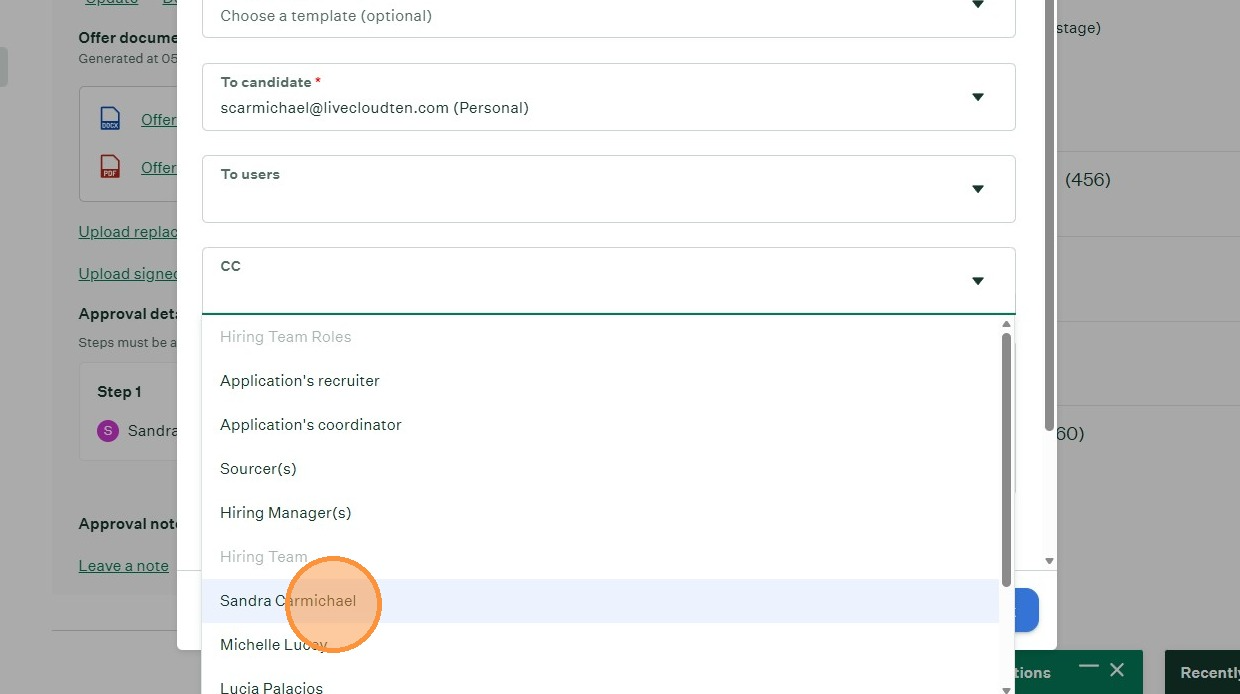
7. From the dropdown list chose the name or names of the people receiving a copy of the offer letter.
You can also start typing a name to bring it up.
8. After you are done with adding the CCs, the next step is to add the job description.
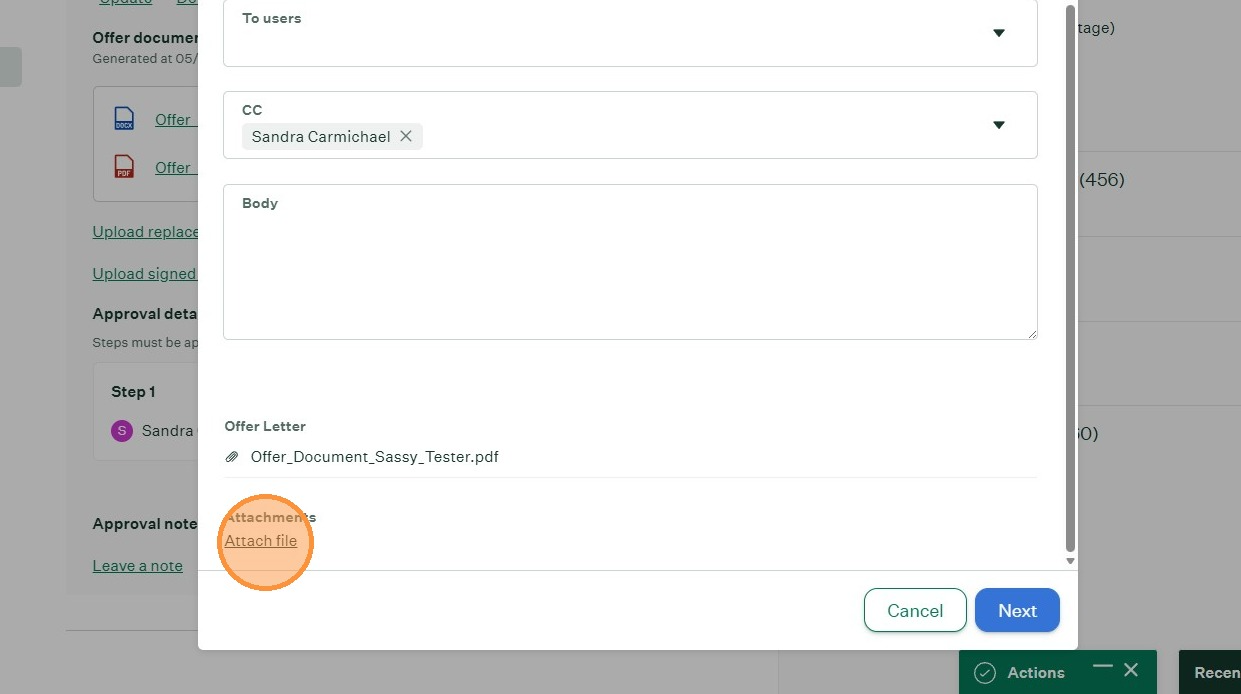
9. Click "Attach file"
Add the job description to be sent with the offer letter for signature.
10. Click "Next"
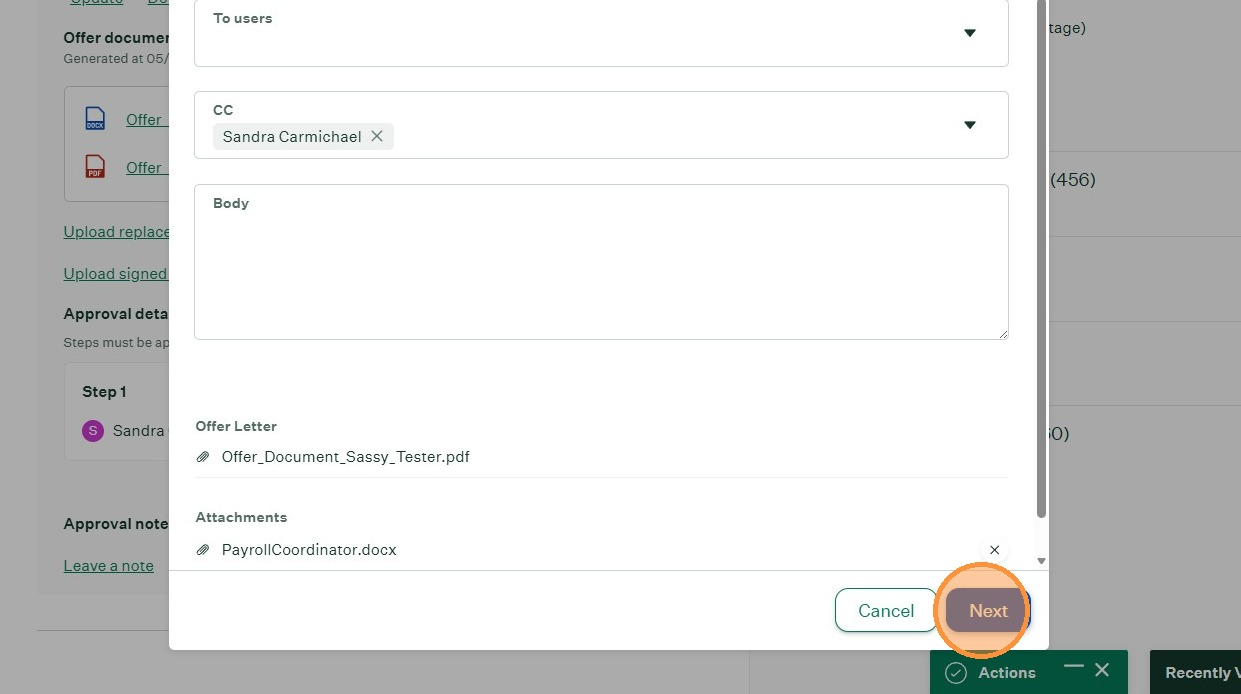
11. When you click NEXT, it will take you to the ADOBE ACRABAT site.
12. Click "Choose more files" to add the benefit packages if applicable for each company. PSG, CloudTen or Sunrise.
NOTE:
The PNW offers all Full-time employees including Full-time temps the company benefits.
Sunrise offers benefits to temporary employees on a case-by-case basis.
PSG does not offer benefits to Full-time temps.
Part-time employees for any of the 3 companies are not eligible for benefits.
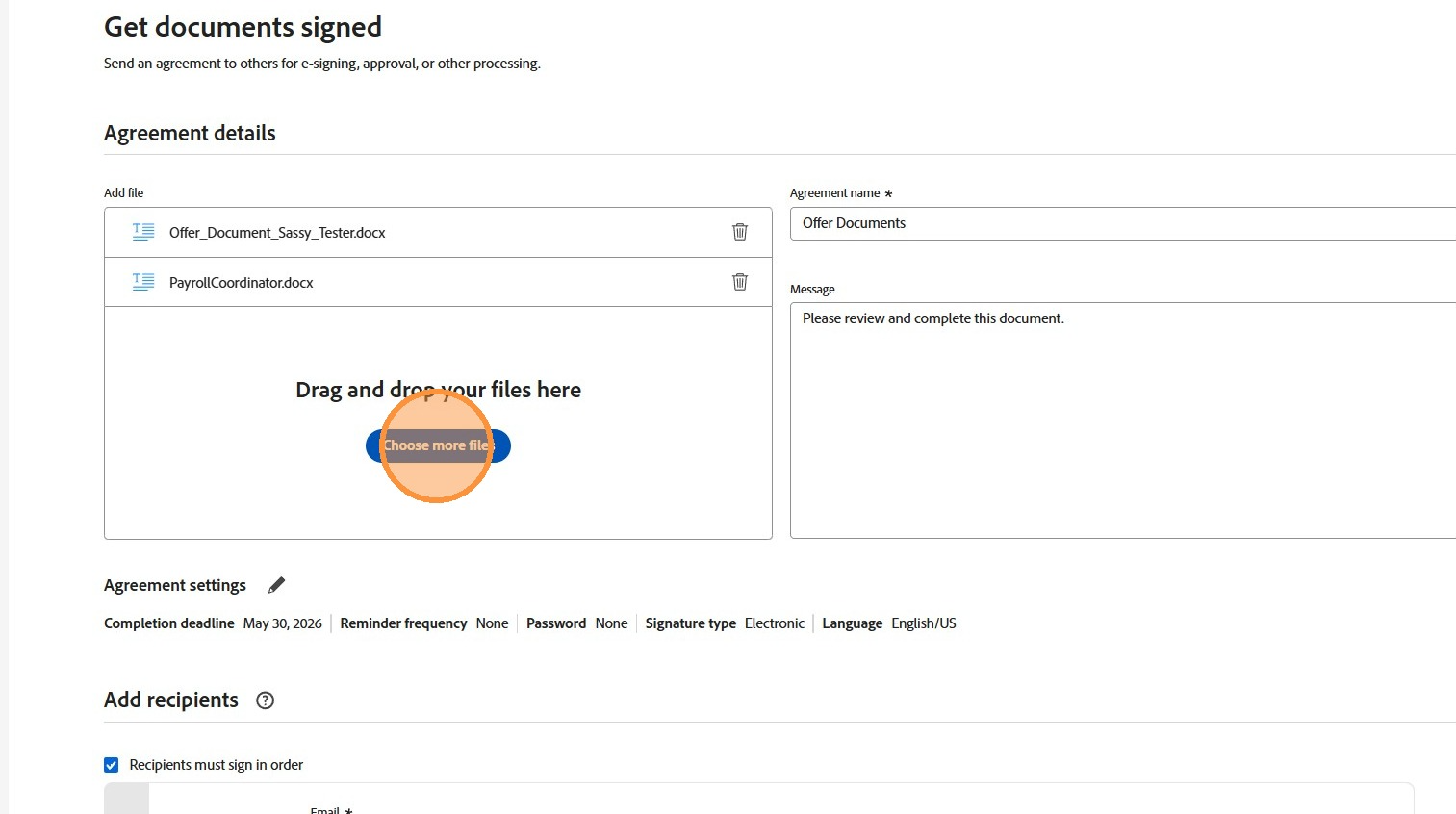
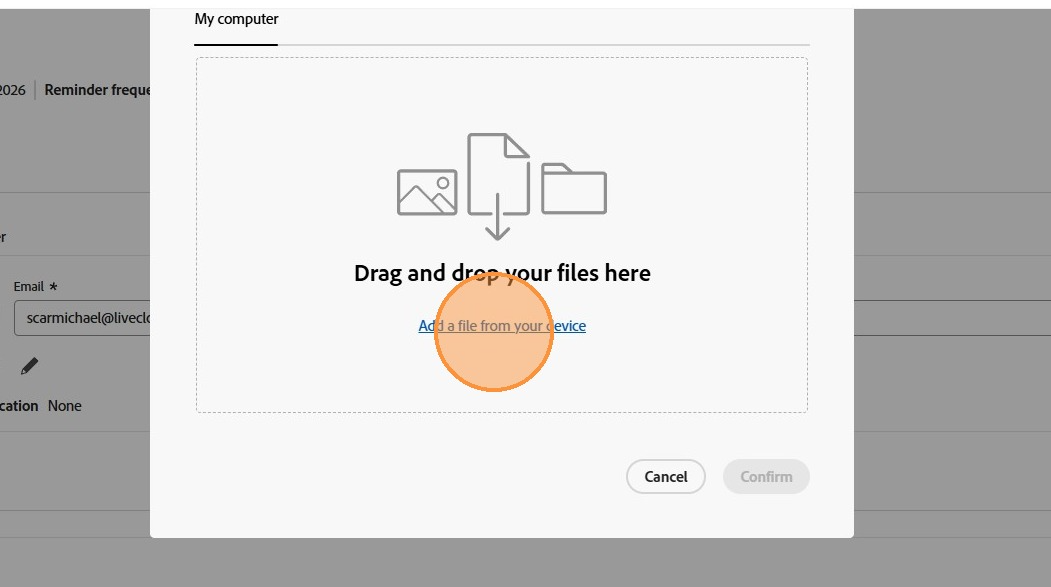
13. Click "Add a file from your device"
You can add multiple documents/guides at a time or you can add one at a time.
Signature Placement
14. Scroll down the page and Click "Preview & add fields". This step allows you to view the document.
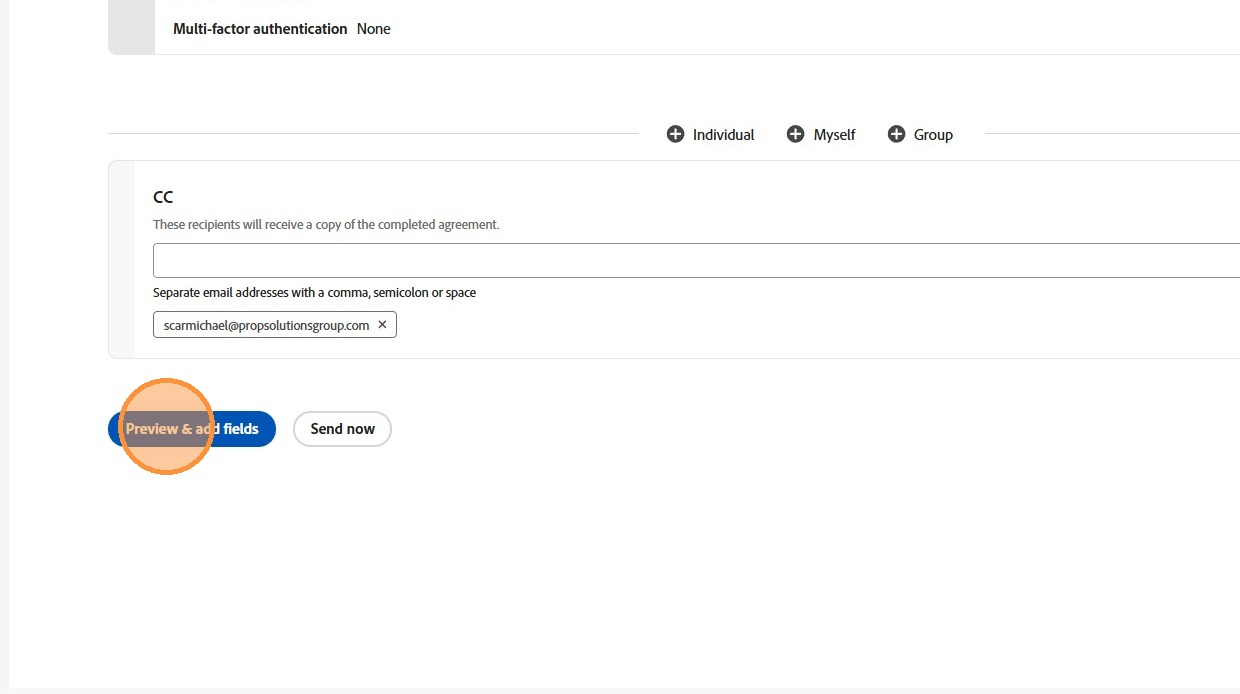
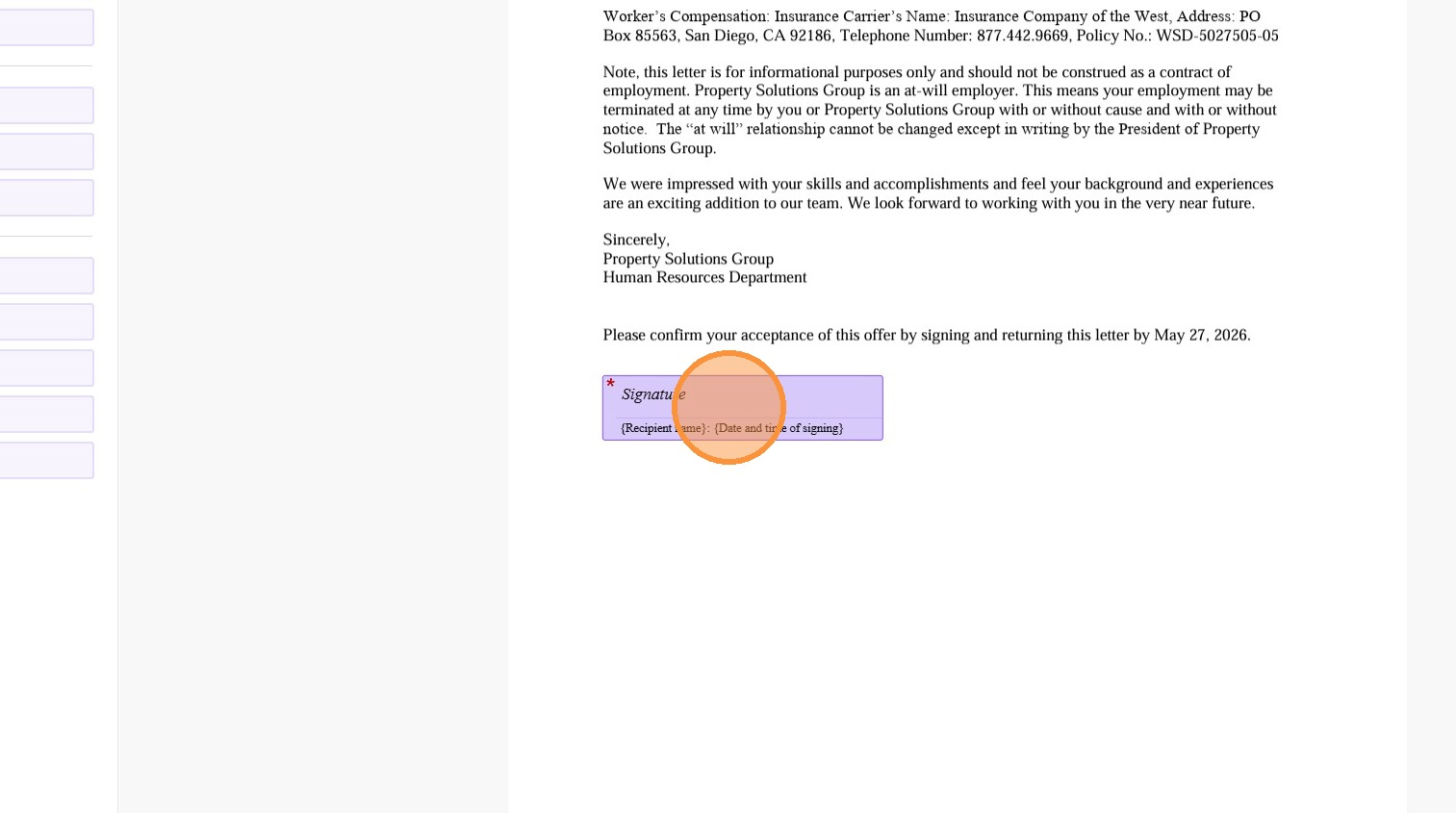
15. The signature box for the Offer Letter is automatically populated to the document.
You can click on the signature box to adjust and/or move the placement.
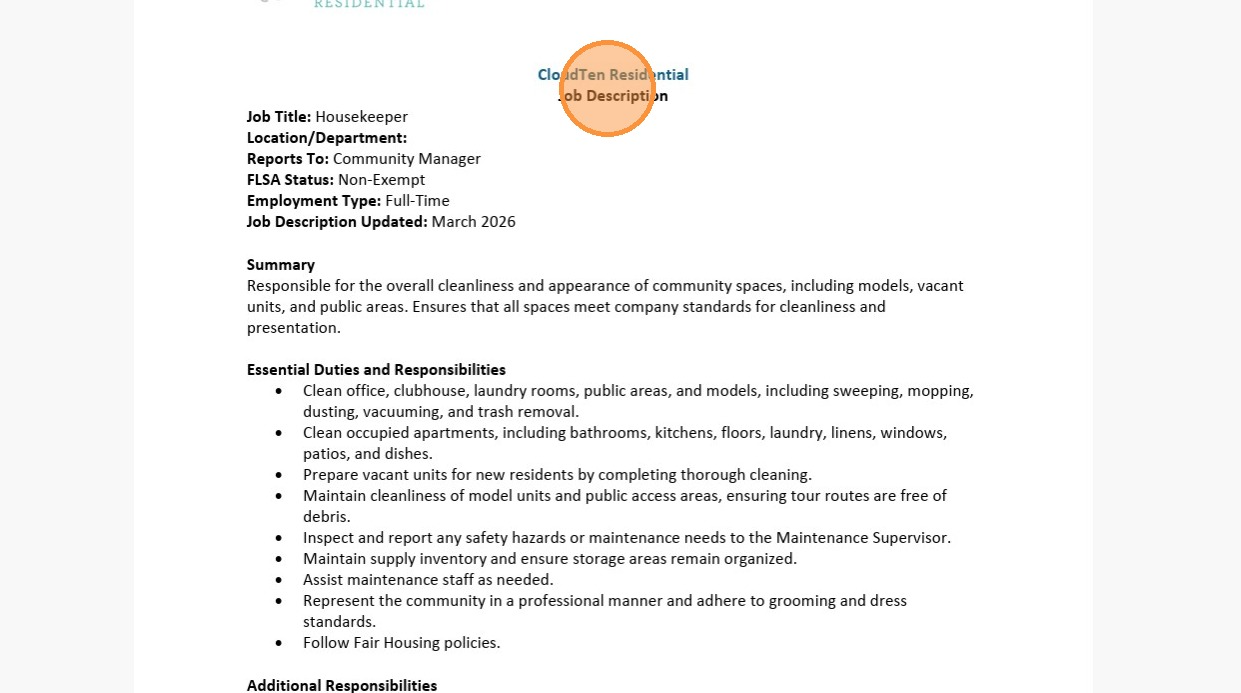
16. Scroll down to the next document, which is the Job Description.
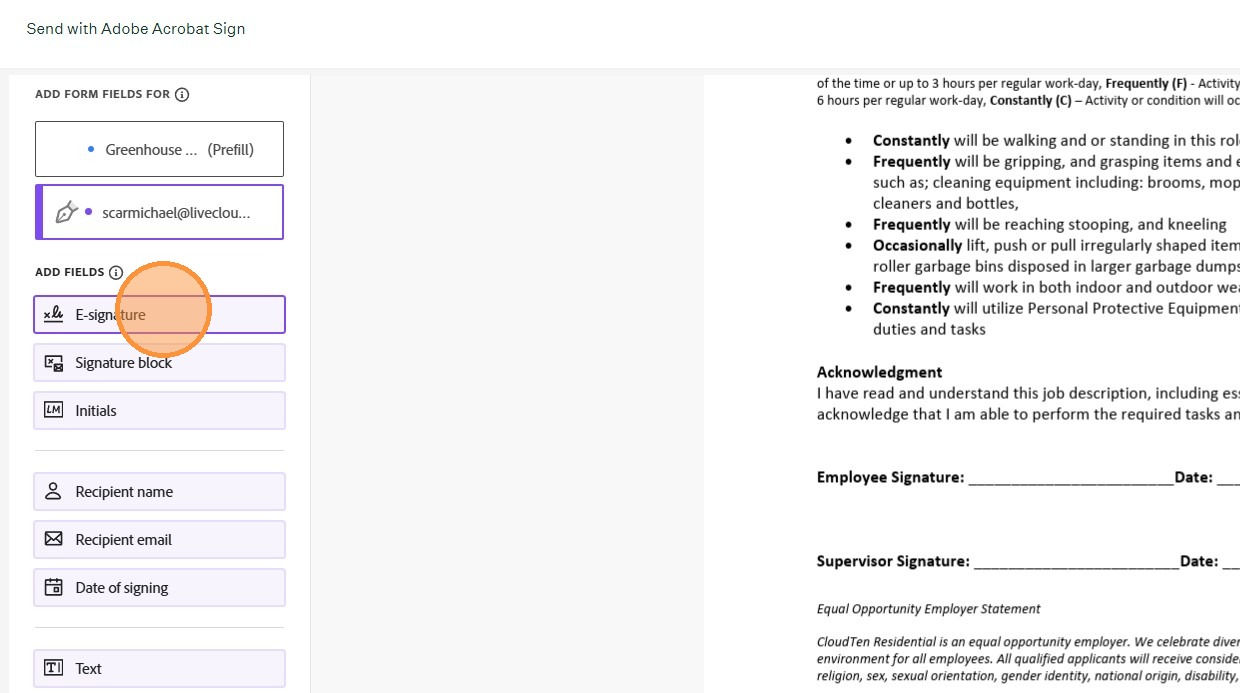
17. On the left-hand-side - click on the E-Signature option and drag it over to the document to manually add an E-Signature line to the Job Description.
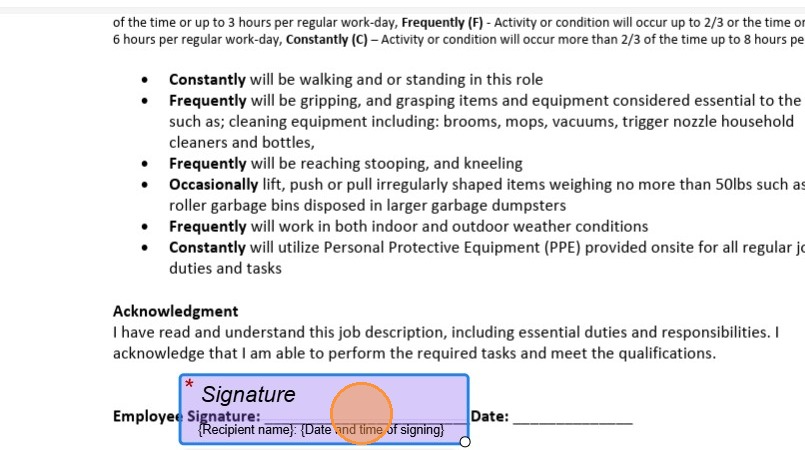
18. Place the E-Signature line where it is needed for the candidate to sign the Job Description.
19. Scroll down and at the bottom of the left-hand-side and click "Send" to send the documents to the candidate.
All the names listed in the CC list will receive a copy.

Workflow Verification
20. Once the documents have been sent, AADOBE ACRABAT will return back to Greenhouse.
21. Optional
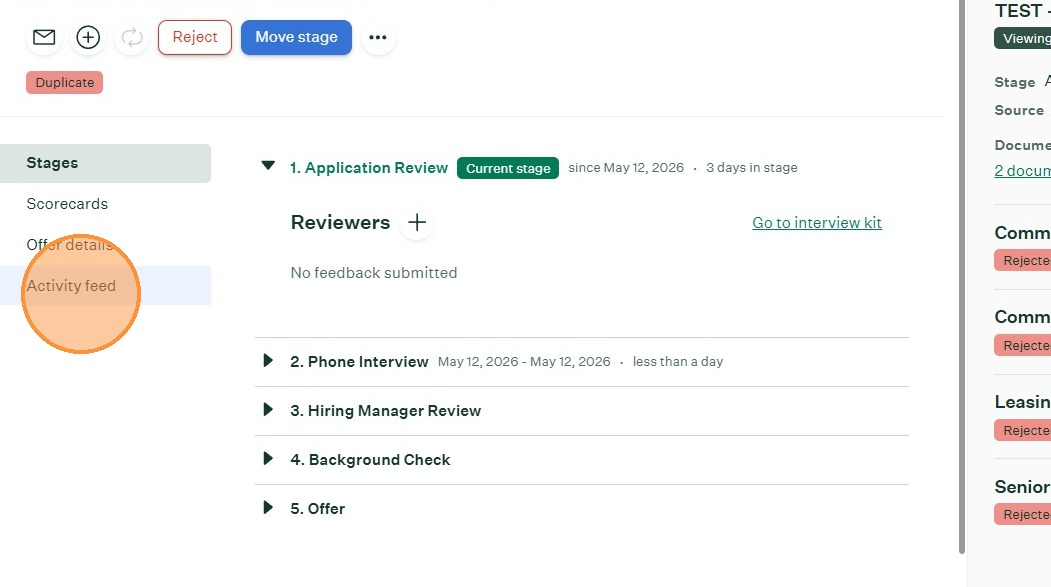
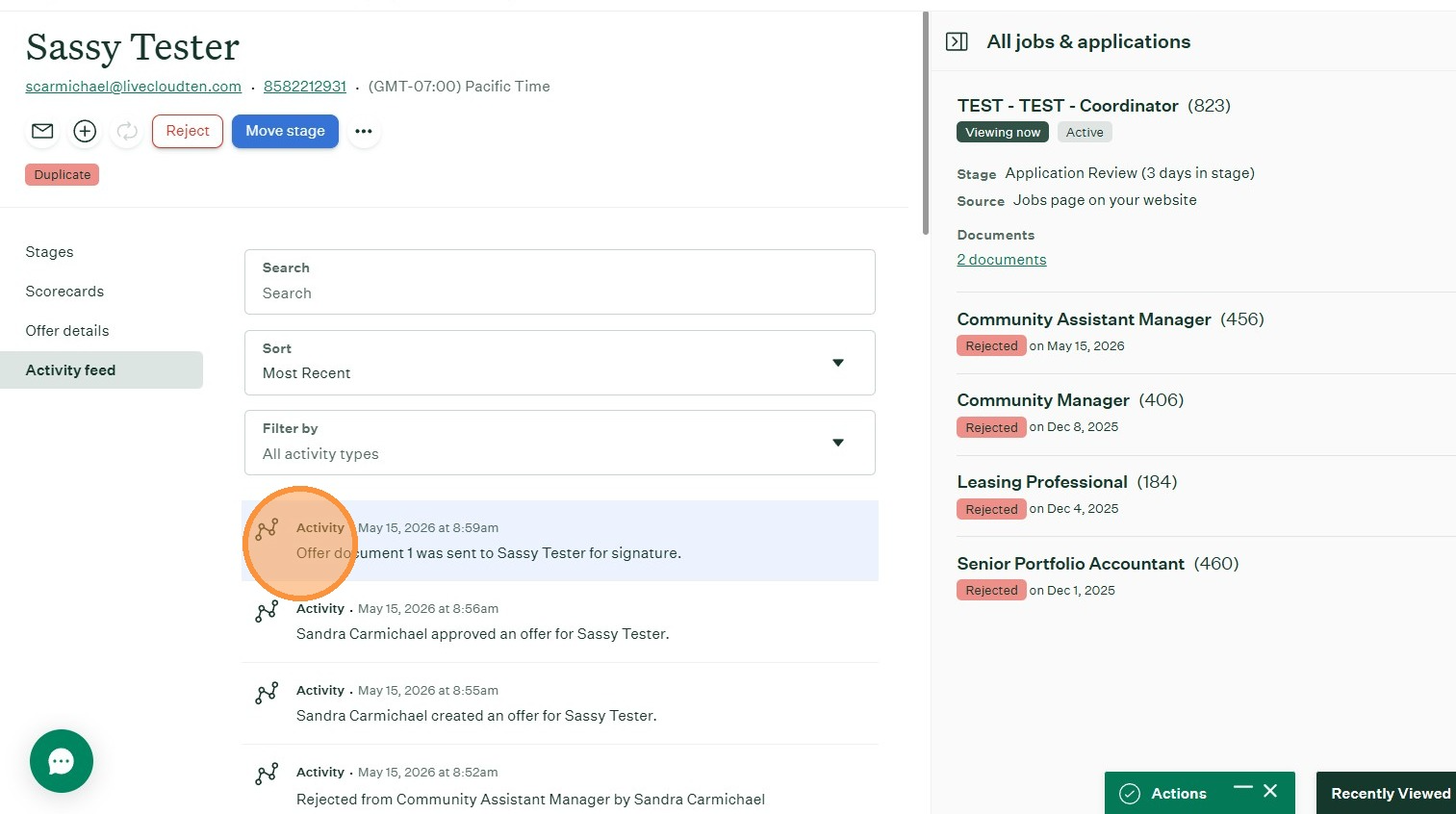
Click "Activity feed" to view and confirm the documents have been sent.
22. Verify the offer status in the candidate activity feed.
23. The end
Was this article helpful?
That’s Great!
Thank you for your feedback
Sorry! We couldn't be helpful
Thank you for your feedback
Feedback sent
We appreciate your effort and will try to fix the article